


Imagine a beach photo you took on a trip, the nearest wave caught halfway to shore: you would like to see it move once. That is a sensible place to start when you animate a photo with AI, provided you treat the new clip as a made-up scene rather than footage of the day.
Choose a photo you may use, ask for one visible motion, check the spending mode, then watch and listen to the entire clip before sharing it.
Start With One Photo You Can Use
WaveSpeedAI Chat supports photo animation (animate a photo just by chatting with AI): upload an image and describe the motion in ordinary words. Sign-in is required. Before uploading, check that you have the right to use the picture for this purpose. If another person is recognizable, ask whether they are comfortable being shown in a newly animated version, especially if you intend to share it. That conversation matters even when the source is an old family print.
Eligible new accounts may receive starter credits; a new email by itself proves nothing. Check your balance. If you are unsure whether a scan, a photographer’s file, or an image sent in a group chat is yours to use, leave it out until you have an answer. A picture you took yourself, with no other recognizable people, is a simpler first choice.
Choose a Frame With a Clear Subject
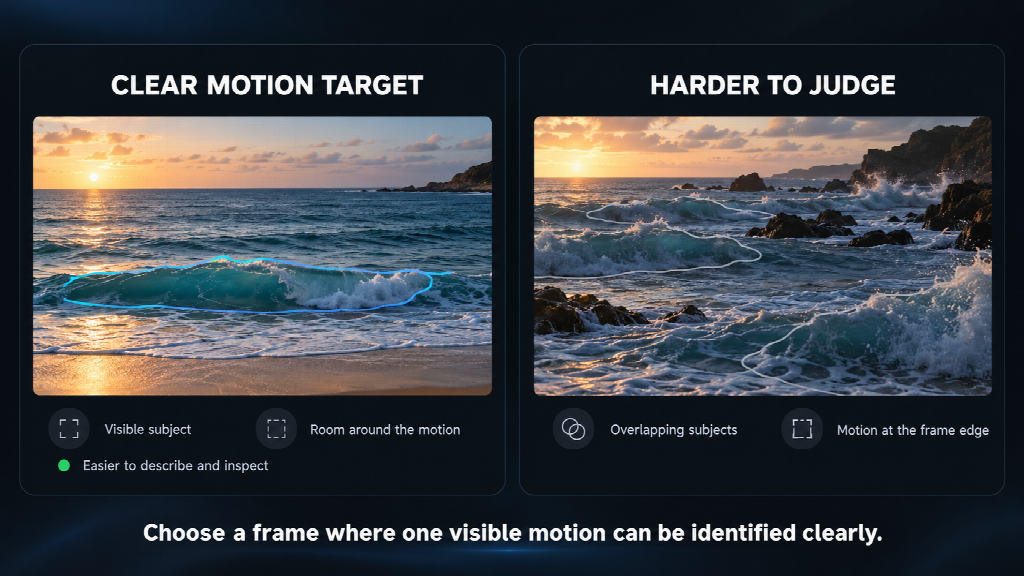
Return to the hypothetical beach photo. Can you identify the wave you want to move without pointing to several overlapping waves? Is the horizon visible? A crisp image with a clear subject gives you something specific to describe and later inspect.
In an old street photo, a flag already in the frame is a better motion target than an invented passerby. Keep the scan nearby. If a face or a shop sign is damaged, the scan remains the historical record, because an animation is a new depiction and does not restore anything.
For a travel scene, leave room in the crop around the moving part. A wave at the edge of the frame is harder to judge than one you can watch approach the sand.
A Simple Prompt to Animate a Photo With AI
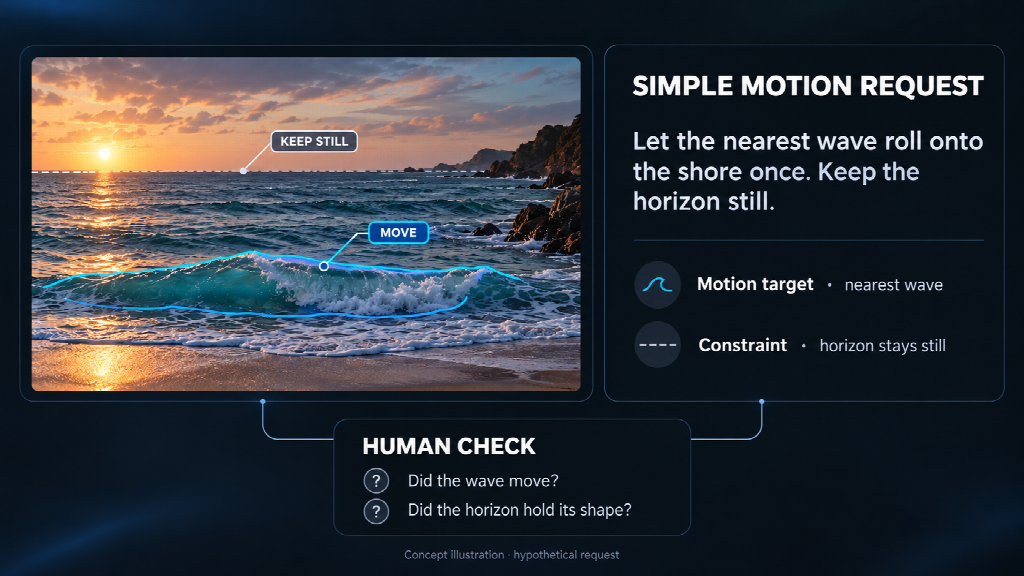
Name the thing that is already in the picture, say what it should do, and say what should stay still. For the beach photo, “Let the nearest wave roll onto the shore once. Keep the horizon still” is more useful than “Make this beautiful.” The first request gives you a visible action to check. The result might still differ from those words. If the frame contains no water, choose a request that fits what is actually there.
These are hypothetical requests, not reports of generated clips. Each uses one main motion so that the result, if you make it, has a clear point of comparison with the source photo.
Illustrative scene: A fictional coastal photo is marked for one possible wave motion; empty checks and headphones suggest later review, not a generated clip or recovered trip audio.
| Photo | Hypothetical request | Human check |
| Your coastal photo with a visible wave | “Let the nearest wave roll onto the shore once. Keep the horizon still.” | Does the wave move naturally, and does the horizon hold its shape? |
| A licensed old street photo with a visible flag | “Let the flag move gently in the breeze. Keep the shopfronts still.” | Compare each sign and window with the original. |
| A family portrait shared with the person’s consent | “Have the person turn their head slightly. Keep the camera still.” | Compare the face, clothing, and hands with the still. |
| Your dog in a room | “Let the dog blink once. Leave the room still.” | Check the dog’s shape and any new objects in the background. |
The four requests follow WaveSpeedAI’s image-to-video guide, which recommends a visible subject, a less crowded scene, and one main action. Those are general image-to-video suggestions, not required Chat syntax or a promise that every photo will animate faithfully. Keep the original still as your comparison point.
The portrait is the hardest choice to share responsibly. Consent to use the still does not automatically cover an invented gesture. Ask about the animated version too. Even if it looks convincing, do not present it as a recording of an earlier moment.
Ask for Sound, Then Check the Video Price
The Chat page describes photo animation as a short video with motion and native sound. You may add a separate request for the beach example: “Soft surf, no voices.” That asks for a new soundtrack; it cannot recover the sound of the actual trip from a silent photograph. Listen to the output rather than assuming the requested sound is present or matches the scene. Different video choices may also behave differently, so a request is never an audio guarantee.
Before you send a video request, check the spending mode. In Ask first, the service shows a plan and price before making anything. In Just make it, images proceed immediately, while videos still show a price for confirmation.
In Full auto, videos can run immediately. Check the current mode, account balance, and price shown for this attempt. Replies and media are billed by use; check the remaining starter credit, if any, before another attempt that may require payment.
Watch the Whole Clip Before You Share It
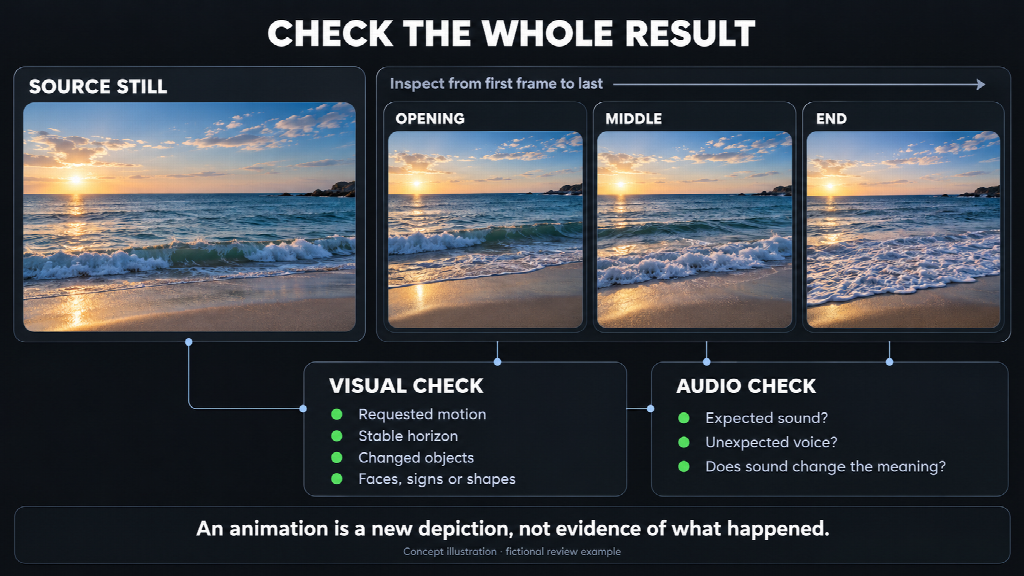
Download the clip and keep the source still available for comparison. Watch from first frame to last, once at ordinary speed and again while looking at the part you asked to move. In the beach example, check whether the nearest wave moves while the horizon stays plausible. A nice opening frame tells you little about the last frame. If you asked for surf, play the audio separately: is there a voice you did not ask for, or a sound that changes the meaning of the scene?
If you animate old photos, look at signs, clothing, and faces against the scan. A new shop name or altered face is a poor fit for a clip viewers might take as a memory of a real place or person. AI photo animation creates a new depiction, not evidence of what someone said or did. If someone is recognizable, show them the finished version and confirm they are comfortable with its audience before posting it.
For a pet or landscape, inspect different details. Does the dog’s outline remain coherent through the blink? Did a boat appear on a shoreline that was empty in the still? These are viewing checks, not claims that WaveSpeedAI usually makes those mistakes. Decide from the actual clip.
If the Motion Feels Wrong, Reduce the Request
If several parts of a frame change when you wanted one, try a narrower request: one wave, one flag, or one blink. If the source is crowded or blurry, choose a clearer picture instead of adding more instructions. Neither change guarantees a better video, and another attempt may cost money. You can keep the still photo, or use a conventional editor to add a slow pan without inventing a person’s movement.
For the beach example, keep the version only if the full clip and its audio match the modest idea you started with. If they do not, save the original photograph and stop there. Always see and hear the whole result before it goes to anyone else.
