


AI image generation becomes more useful when you can explain what a good result should look like before you press Generate. An ai image generator can produce striking ideas from short descriptions, but vague prompts often leave the composition, lighting and important details to chance. Whether you need a blog illustration, a social post, a concept image or a website visual, a repeatable process will help you get closer to your goal.
The practical starting point is to choose the image’s job, write a structured prompt, compare candidates and refine the specific element that is not working. Dreamina offers a way to explore text-to-image concepts and develop visual directions; check the controls available in your version before relying on a particular editing or export feature. The examples below are proposed prompts, not claims about completed product tests.
Start with the image’s purpose, not a list of adjectives
An image intended as a website header needs space for a headline. A social graphic needs a focal point that remains recognizable on a phone. A blog illustration may need to explain an idea without suggesting that an invented scene is a real event. A product promotion should not misrepresent the actual item.
Write a one-sentence brief before generating: “Create a wide, editorial-style image about digital creativity, with the subject on the right and uncluttered space on the left for a headline.” This is more actionable than “make an amazing futuristic picture.” It defines the audience-facing purpose and gives you a basis for judging results.
Choose the intended aspect ratio early. A wide banner, square post and vertical story have different space constraints. If the image is destined for a responsive website, also consider what will remain visible after mobile cropping. Generating an attractive square and forcing it into a panoramic banner can cut off the most important subject.
Build a prompt with five useful ingredients
A reliable prompt identifies the subject, its placement, the environment, the lighting and the visual style. You can add a palette or a specific constraint when it affects the final use. For example:
“Editorial illustration of a person arranging colorful geometric shapes on a desk, subject positioned on the right, quiet cream-colored background on the left, soft window light, muted blue and terracotta palette, contemporary cut-paper style, wide composition, no text or logos.”
Each phrase has a job. The subject tells the model what to depict; placement reserves space; lighting and palette set the mood; style influences how the scene is rendered. “No text or logos” helps keep the artwork separate from information that must be accurate and editable.
Compare this with “creative person at work, professional, beautiful, high quality.” Those adjectives do not explain the desired layout. When a prompt produces the wrong image, make the missing instruction visible rather than stacking more praise words onto it.
Choose a visual style that supports the message
Photorealistic imagery, editorial illustration, watercolor, flat vector-like art and three-dimensional renders communicate differently. A conceptual article might benefit from a simplified illustration because the shapes are easy to interpret. A lifestyle campaign might call for natural light and believable materials. A technical explainer may need a clean schematic made with verified labels added later.
Do not use realism automatically. A convincing photograph-like scene can imply that a place, product or person exists. If the image is invented, avoid presenting it as documentary evidence. When exact product details matter, an authorized product photograph is safer than asking a generator to reconstruct packaging, labels or accessories.
Keep style instructions specific. “Soft directional light, low-saturation colors, paper-cut textures and minimal background detail” gives a clearer visual direction than “premium aesthetic.” If the first candidate feels too glossy, revise the surface treatment. If it looks too cartoonish, adjust the illustration style rather than rewriting the entire scene.
Control composition and negative space
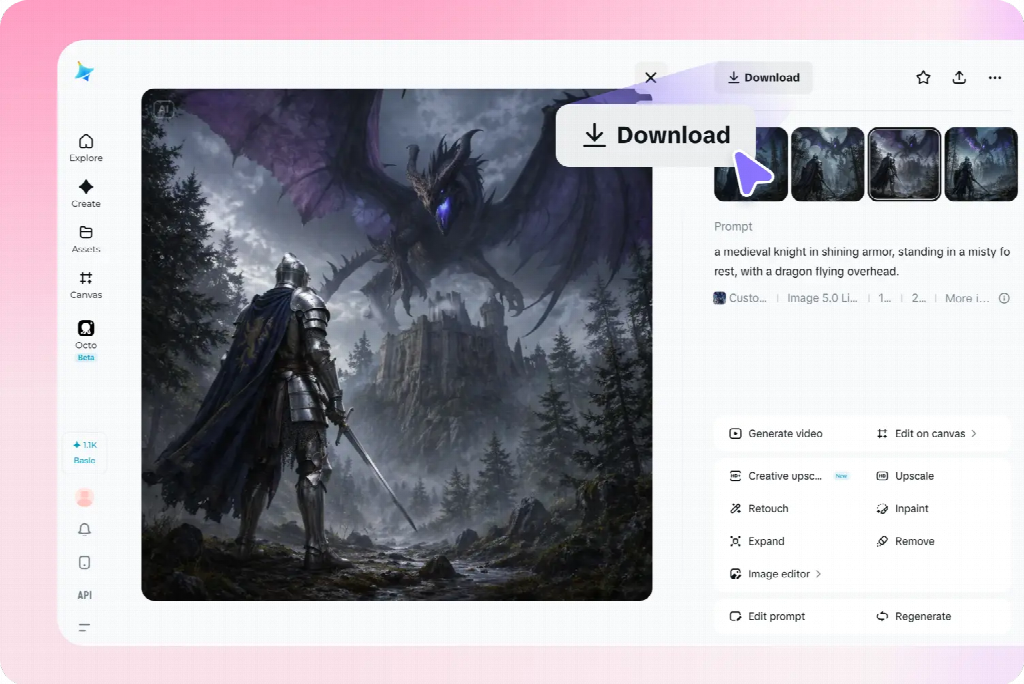
Many images fail in a real layout because the subject occupies the same space as the headline. Put composition into the prompt: “Main subject in the right third, broad low-detail area on the left, no important elements near the edges.” These are requests, not exact placement guarantees; always inspect the output.
For a square social image, a centered subject may work better than a side-weighted layout. For a vertical image, think about where interface elements or captions will sit. Test the image with actual copy at its intended viewing size before selecting a final version.
If the model ignores a placement request, simplify the scene. Reduce the number of objects, describe one focal subject and remove competing background details. It is often easier to create a clean image and add text separately than to generate a complete poster with perfectly spelled lettering.
Revise one problem at a time
Prompt iteration works best as a diagnosis. Identify the failure before requesting another version. If the palette is wrong, preserve the subject and composition while changing the colors. If the scene is cluttered, ask for fewer props and a simpler background. If the subject is cropped, adjust its placement or the framing.
For example, revise the earlier desk illustration with: “Keep the cut-paper treatment and cream background, move the person farther right, remove small desk accessories and preserve a larger uninterrupted area on the left.” This describes what should stay and what should change.
Save useful prompt versions with the selected images. A simple naming convention—concept, version and intended placement—makes it easier to return to a successful direction. Do not assume that repeating the same prompt will always reproduce an identical image.
Check details before treating an image as finished
Inspect hands, faces, object boundaries, repeated patterns, reflections and shadows at full resolution. A small thumbnail can hide a malformed handle, an inconsistent reflection or a shape that merges into the background. Photographic-looking images deserve particular scrutiny because viewers may read these details as real.
Use the right fix for the right problem. A crowded background may call for a simpler prompt. An awkward edge may be handled by a supported localized edit or by choosing another candidate. A product whose shape is inaccurate should be replaced with an approved photograph rather than cosmetically “corrected” into something that looks plausible.
The accompanying conceptual artwork illustrates why visual interest and factual accuracy are different questions. Its unusual transportation scene can work as imaginative editorial art, but it should not be used to depict a documented incident or location. The same principle applies to generated people, buildings and branded objects.
Turn one visual direction into several useful formats
Consistency does not require identical crops. Start with a shared palette, lighting direction, subject treatment and background style. Then write a separate composition brief for each destination. A wide website header might place the subject on the right; a square social image might center it; a vertical story may require a taller arrangement with clear space near the top.
For example, a companion prompt could read: “Square editorial illustration in the same muted blue and terracotta palette, one central geometric arrangement, soft window light, simplified background, no lettering.” Compare the results together and look for differences in surface texture, color intensity and visual complexity.
If a crop removes the key subject, generate a new composition rather than stretching the source. Keep logos, product photographs, prices, headlines and calls to action as separately editable elements when accuracy matters. This makes future changes easier and avoids depending on generated text.
Use motion only when it adds something
A still image is often enough. An ai video generator becomes relevant when movement helps explain a process, reveal a transformation or create a short visual sequence for a campaign. Begin with a simple storyboard: opening frame, meaningful movement and ending frame. Decide what should remain consistent across those moments.
For a conceptual visual, a gentle movement of layered paper shapes might support the theme. For a product advertisement, motion should not invent new features or change the product’s appearance. Review individual frames as well as the whole clip; a convincing first frame does not guarantee consistent details throughout.
The image-to-video or text-to-video workflow, available settings and output restrictions vary by product and account. Confirm them before writing production requirements. Do not promise a specific motion effect or output quality without testing it.
Choose the right resolution and export
A picture that looks sharp in an editor may soften when enlarged for print. Check the actual pixel dimensions against the final display size. At 300 pixels per inch, a 4 × 6 inch print area corresponds to approximately 1,200 × 1,800 pixels before bleed, although the printer’s requirements determine the final file specification.
For web use, inspect the image at the dimensions where visitors will see it. Check compression artifacts, subject clarity and the effect of responsive cropping. Keep a high-quality source and export destination-specific versions. Use the format requested by the platform or printer rather than assuming one format works everywhere.
Final quality checklist
Before publishing, ask five questions. Does the image communicate the intended subject immediately? Is there enough usable space for any required text? Are the style and colors appropriate for the context? Do close-up details withstand inspection? Could any generated element mislead a viewer about a real product, person, place or event?
Then review the finished layout, not just the generated image. A visually impressive background can still make a headline unreadable. A coherent set of images may still fail if each crop hides the call to action. Fix the specific communication problem before generating more alternatives.
The most effective workflow is not an endless search for a perfect prompt. It is a sequence of clear decisions: define the image’s job, describe a controlled visual direction, compare results against the brief, refine the weak point and check the final output in context. Those habits make AI-generated visuals more useful across many different projects.

